 MissionKid
Getting started with MissionKid
A walkthrough of every screen, from your first login to your child's first reward.
Set up your family
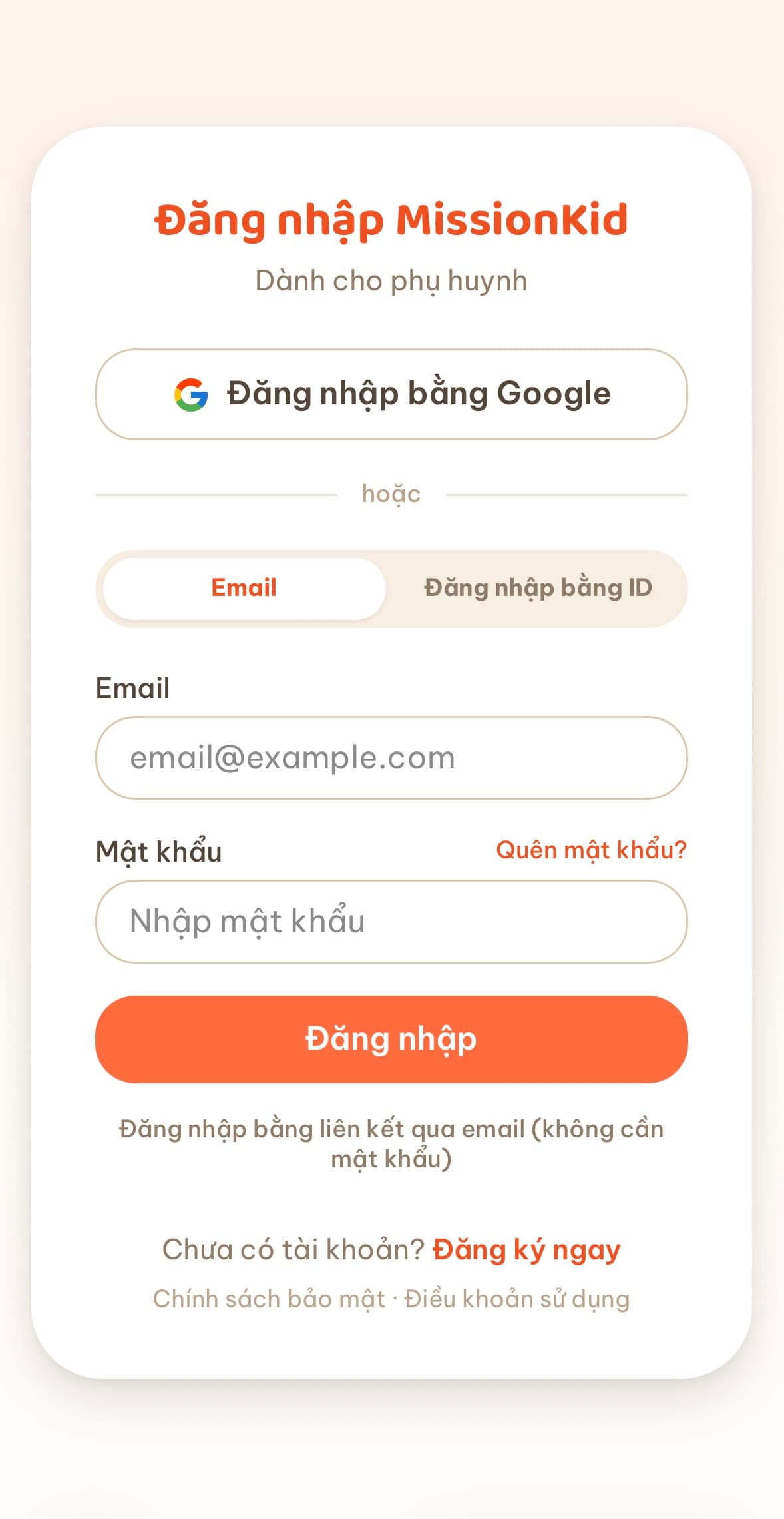
Log in for the first time
Open the app and sign in with Google, or with email — set a password, or use a magic link sent to your inbox.
Pick a profile
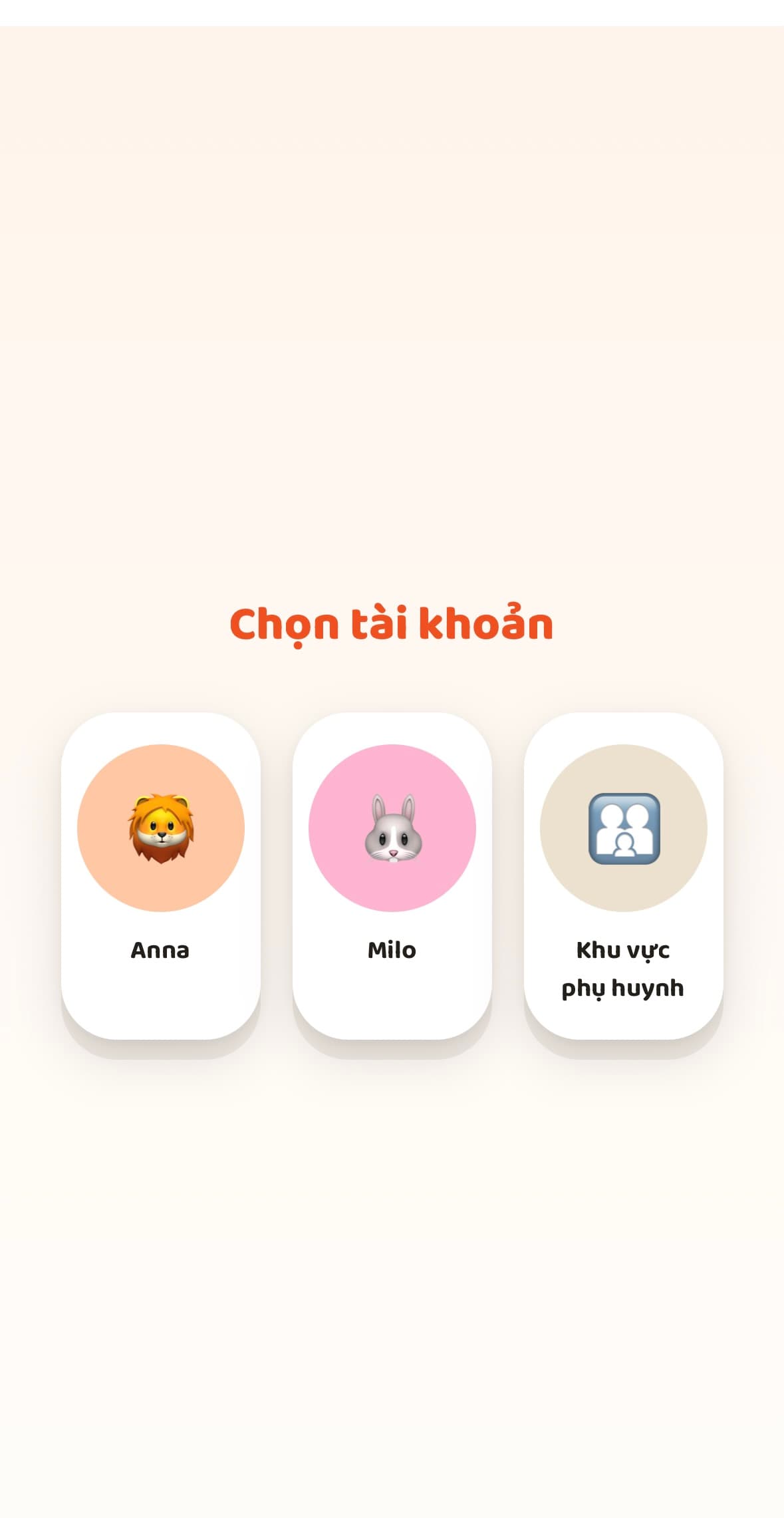
After logging in, choose "Parent area" to reach settings — each child gets their own tile here too, once added.
Choose a language
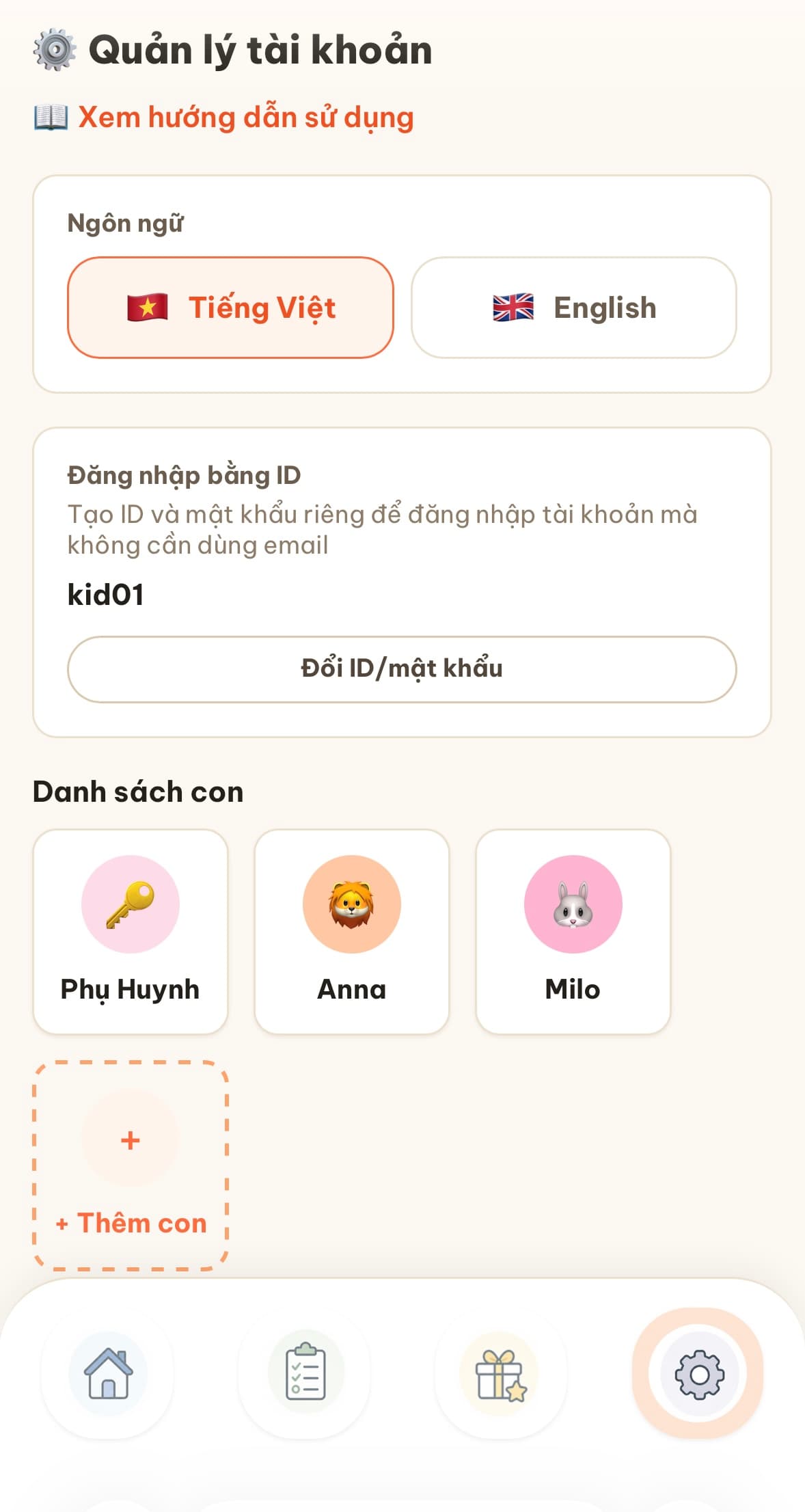
Pick Vietnamese or English for the whole family. You can change it again anytime from Account.
Set up the Account page
This one screen covers everything else in part 1:
- •Add a profile for each child, with an optional password so they can log in themselves.
- •Tap 🔑 Parent to set a parent password that locks the settings area.
- •Create a separate login ID and password under "Login by ID" — so you can log in again on another device without email.
Give your kids missions
Add a daily task
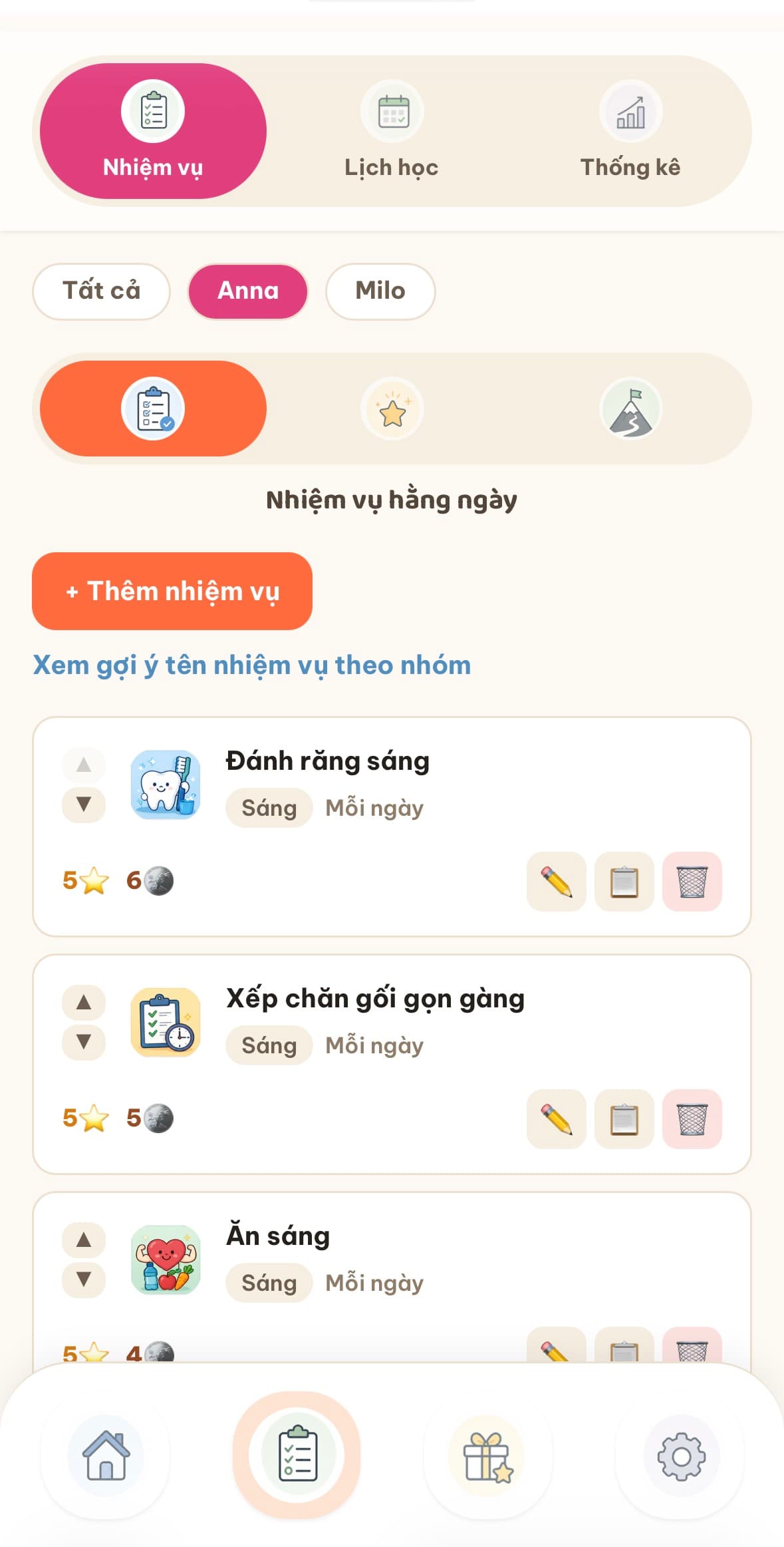
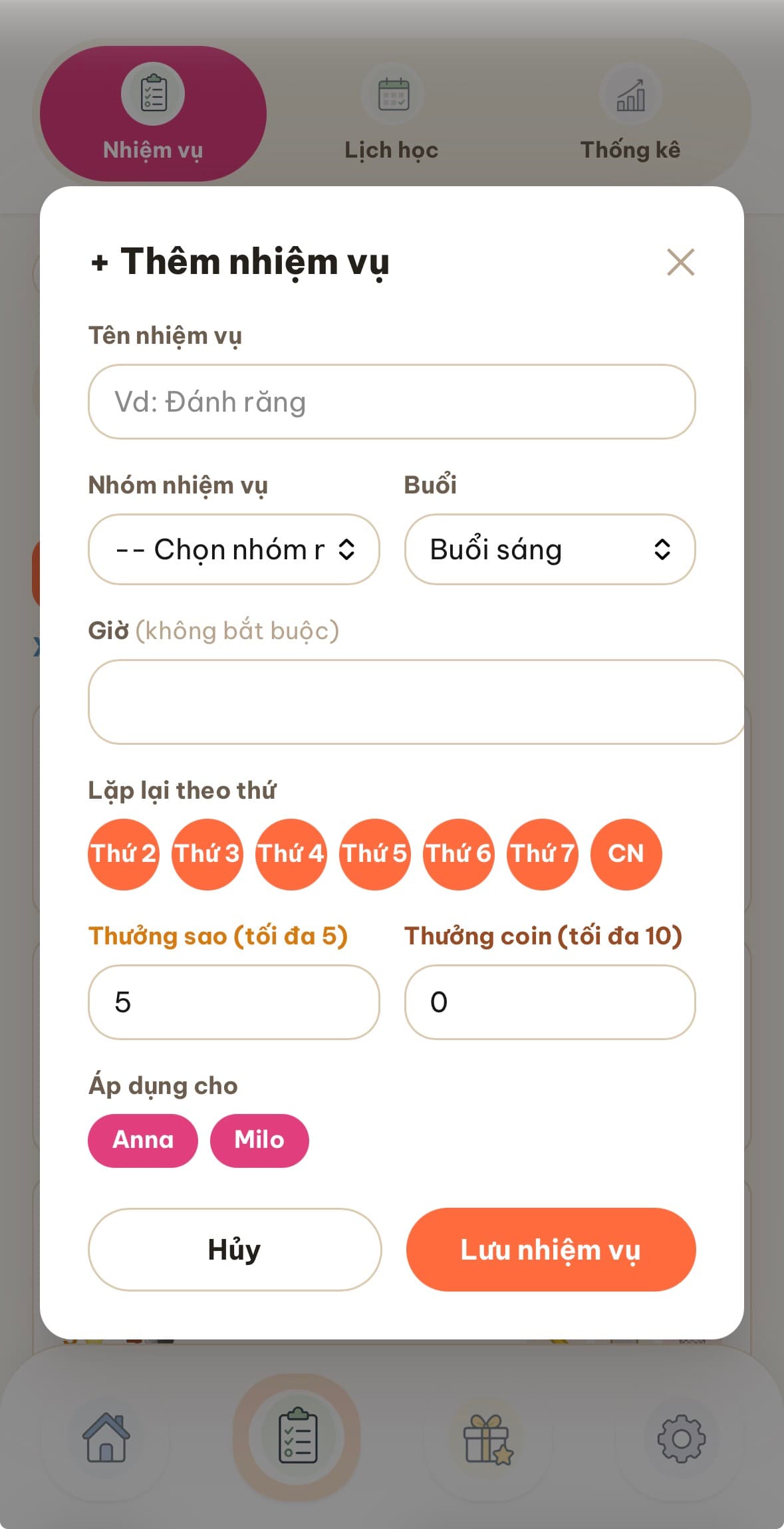
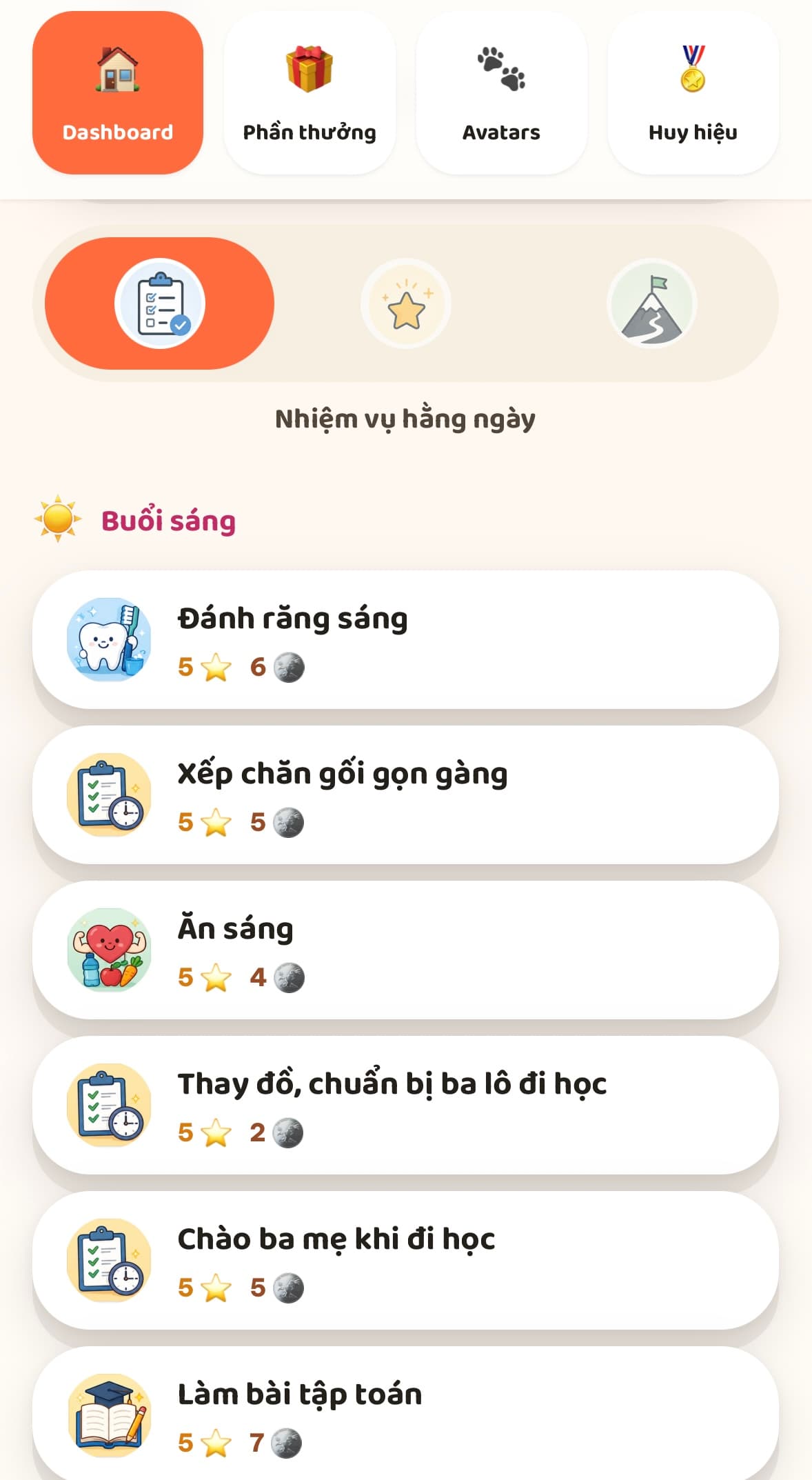
In Tasks → Daily tasks, tap + Add task: name it, pick a required task group, a time of day, which days it repeats, star/coin rewards, and who it applies to. Use the ▲▼ buttons to reorder — that's the order kids will see them in.
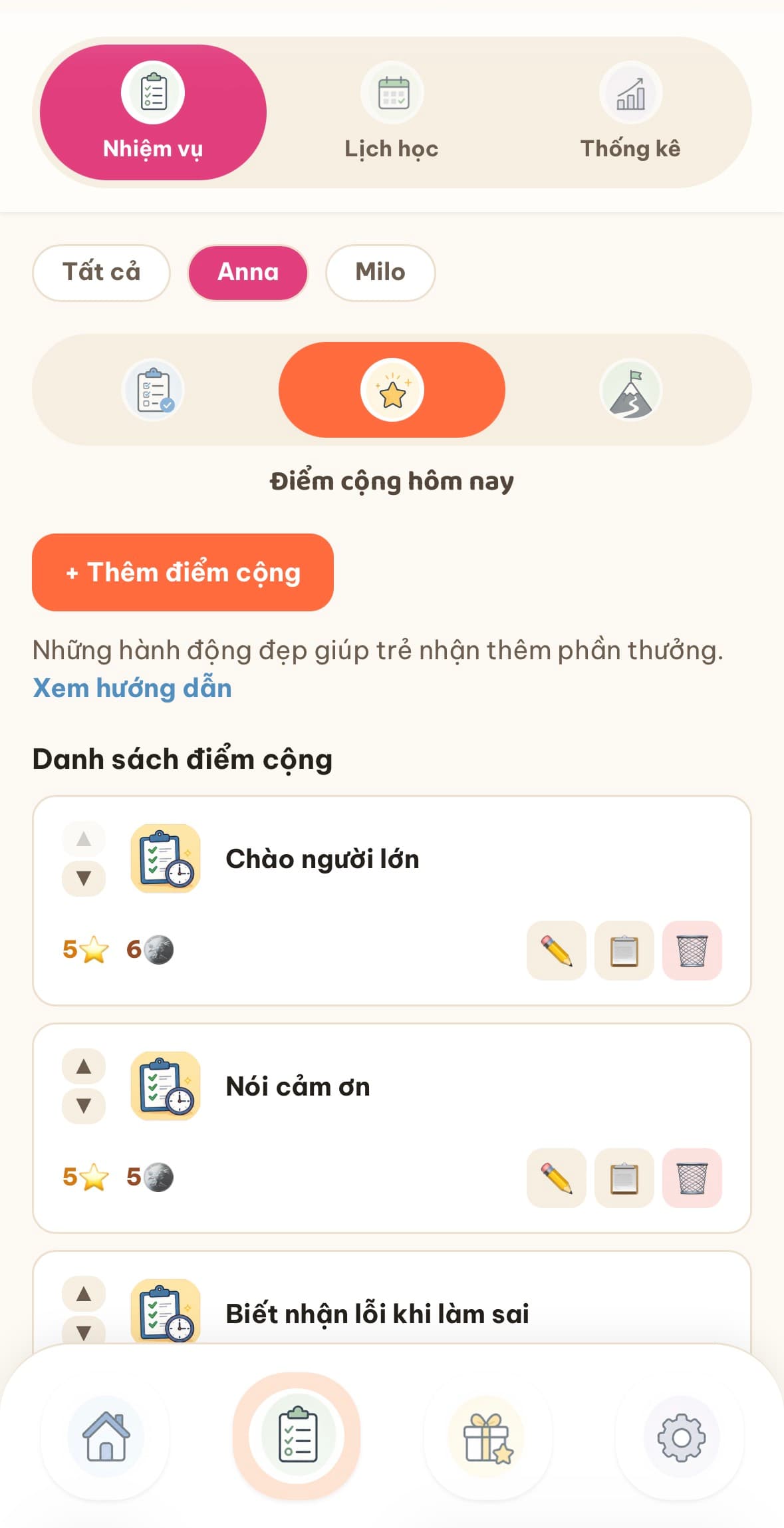
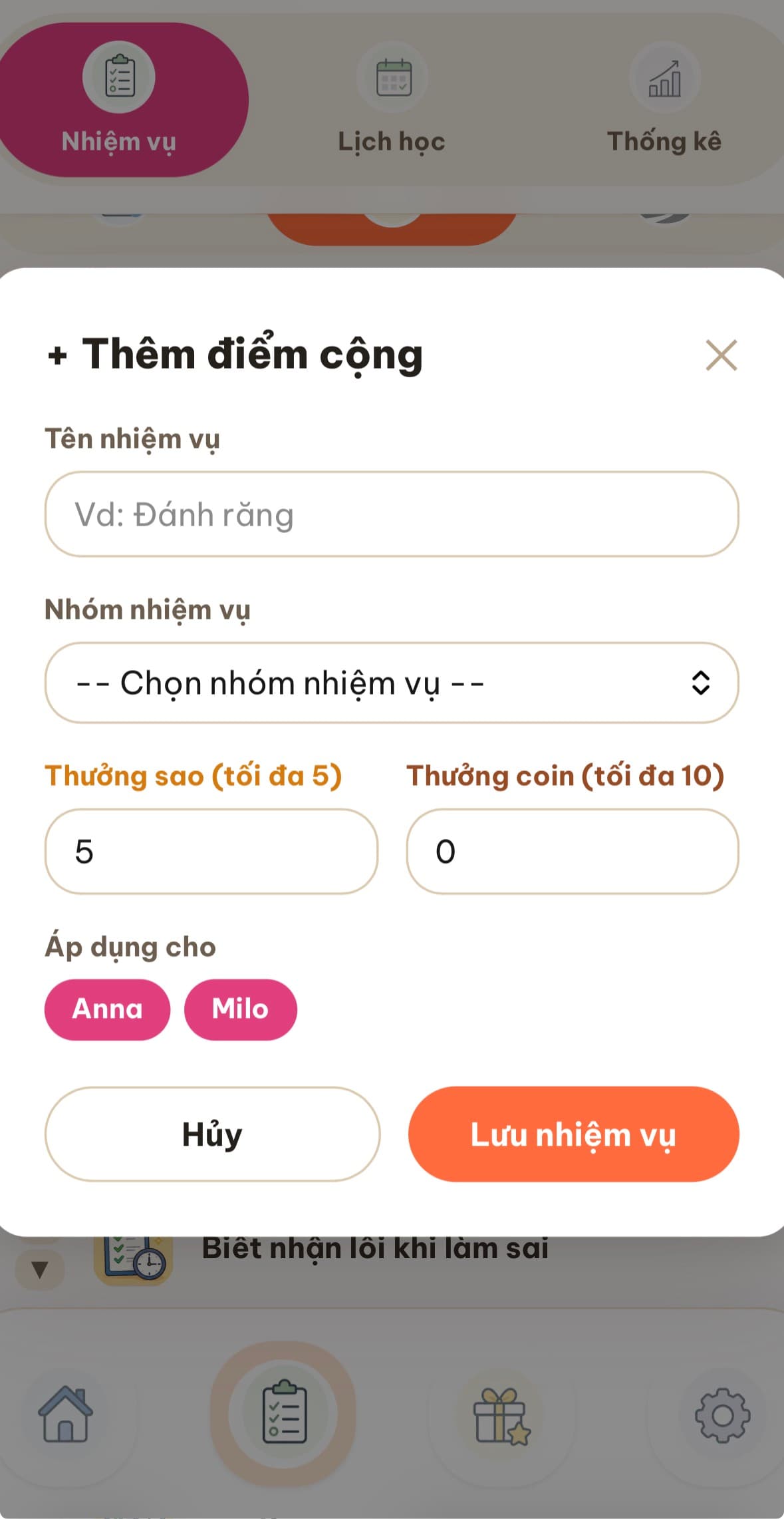
Bonus points — optional
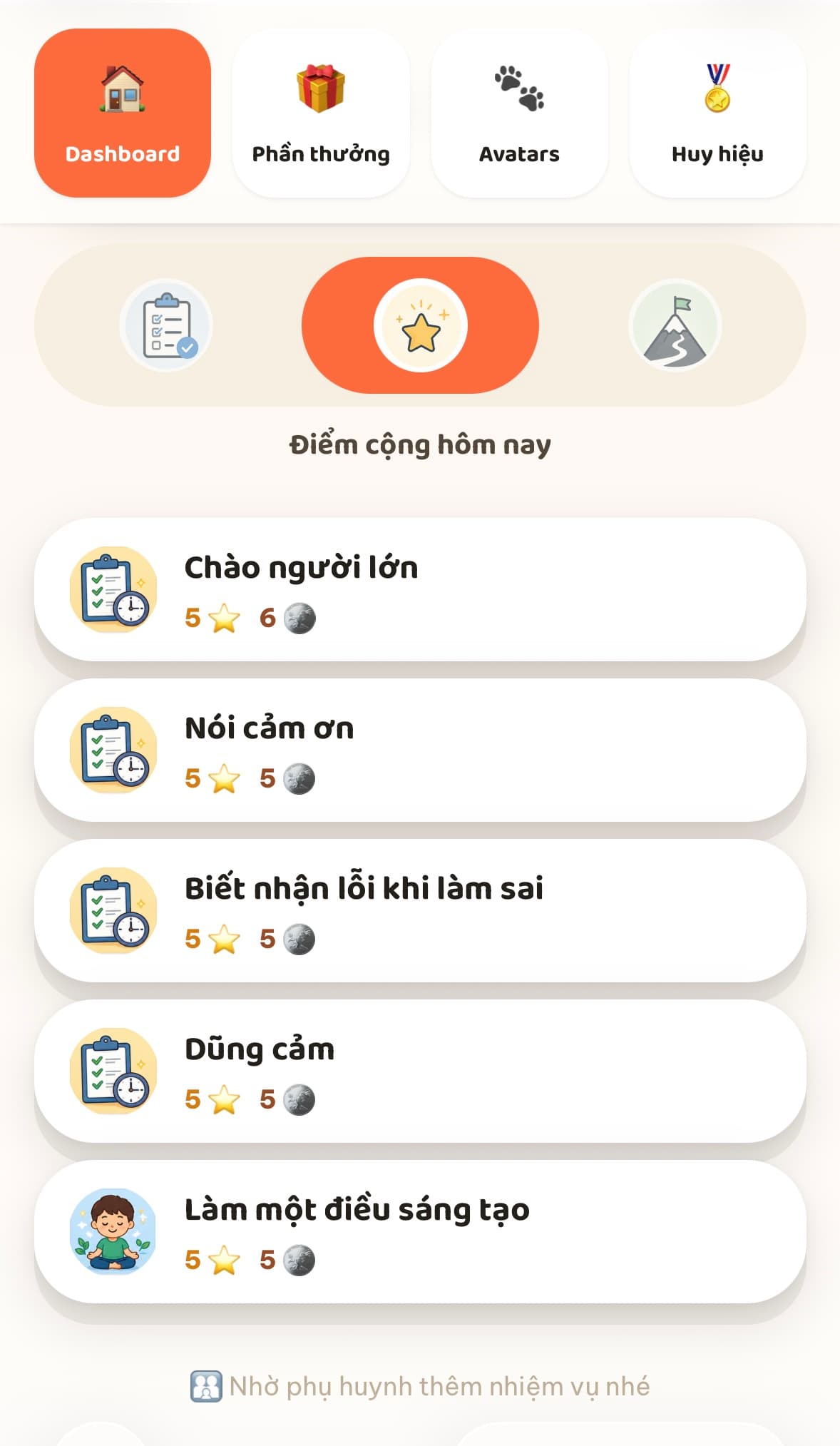
For good behavior that doesn't need a fixed schedule — being brave, saying sorry, a creative moment. Doesn't affect the daily-task completion ring.
Special goals — optional
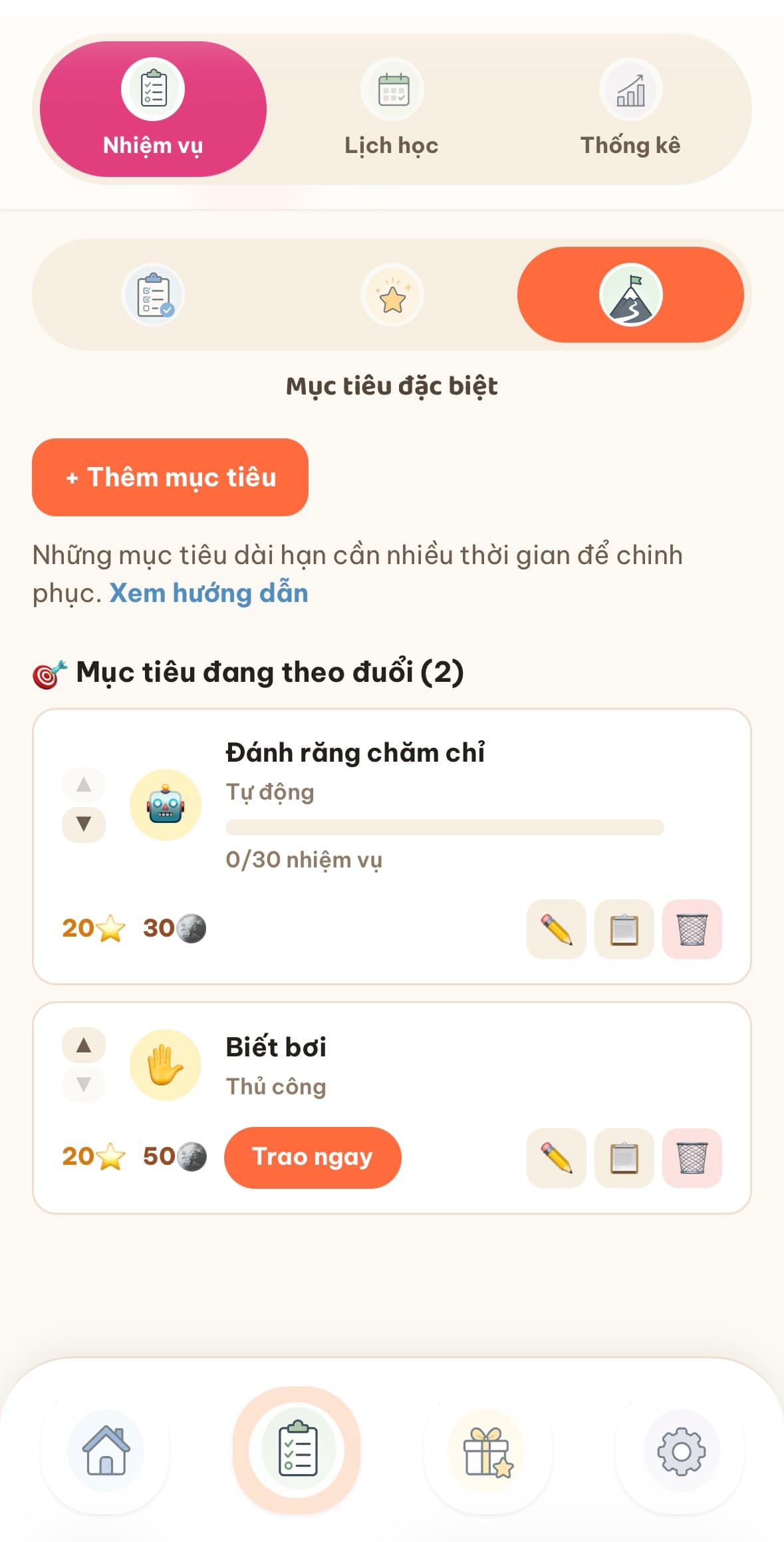
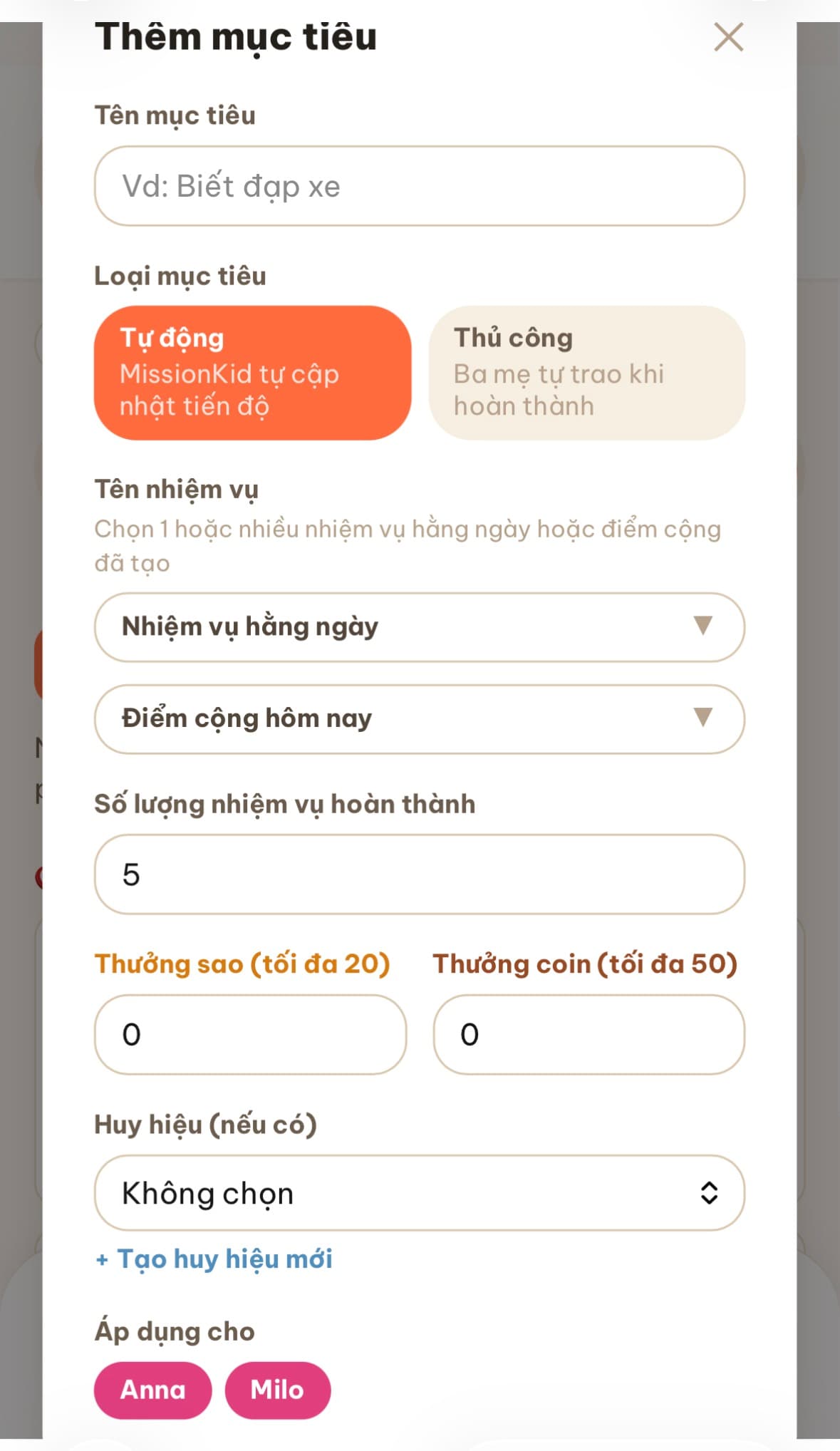
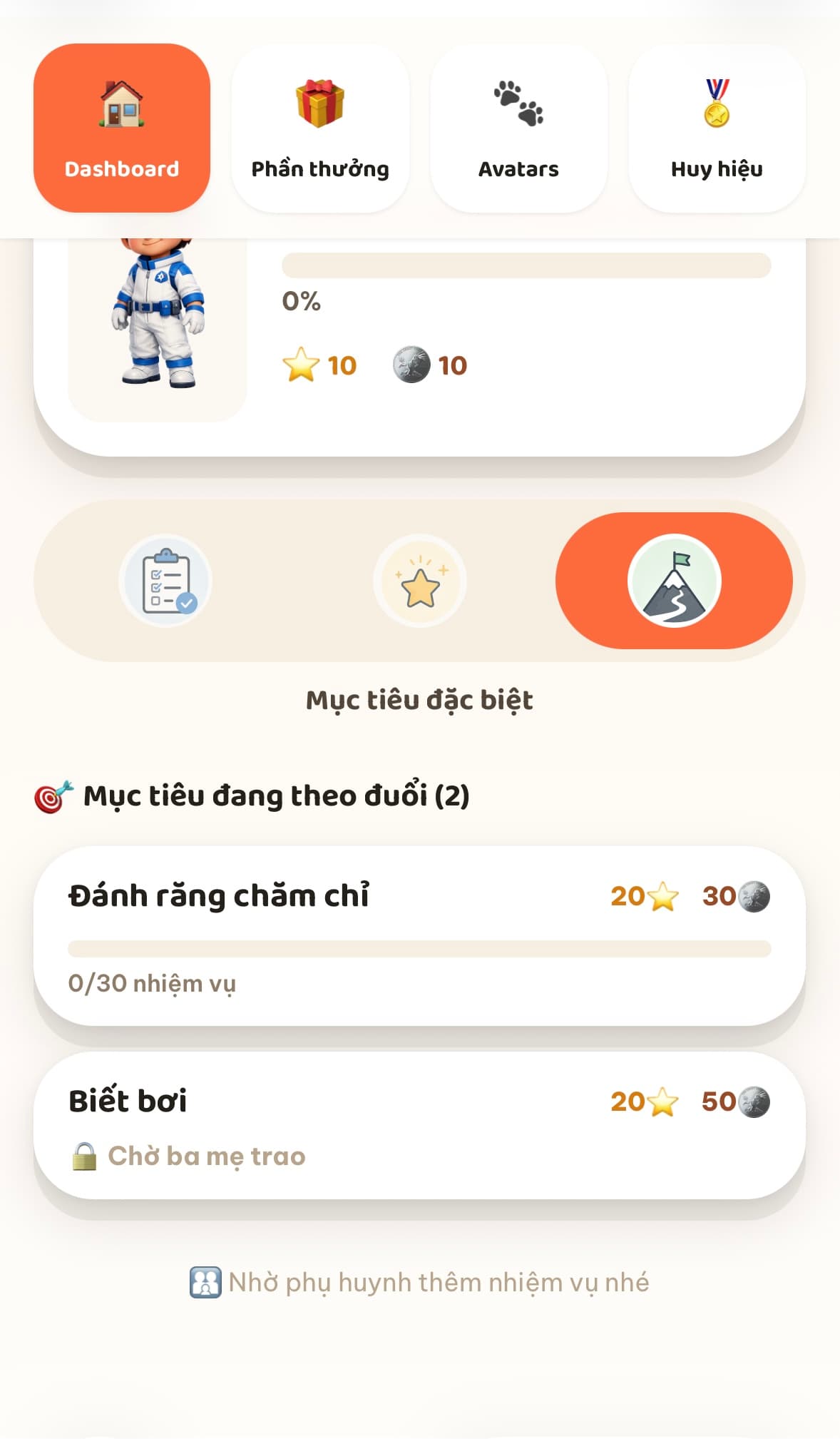
For bigger milestones. Automatic goals track progress toward a task count (like brushing teeth 30 times); manual goals are granted by you whenever your child earns it (like learning to swim).
Class schedule — optional
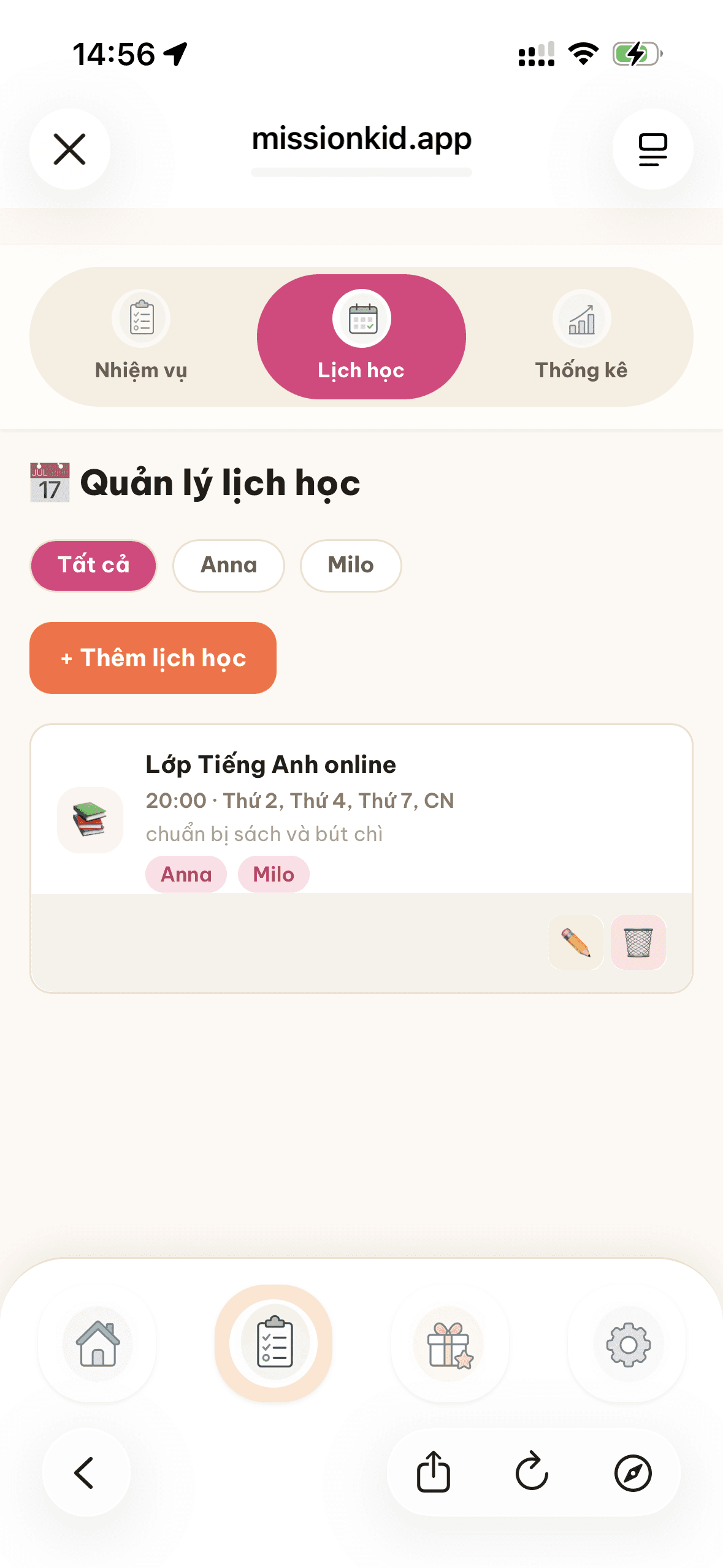
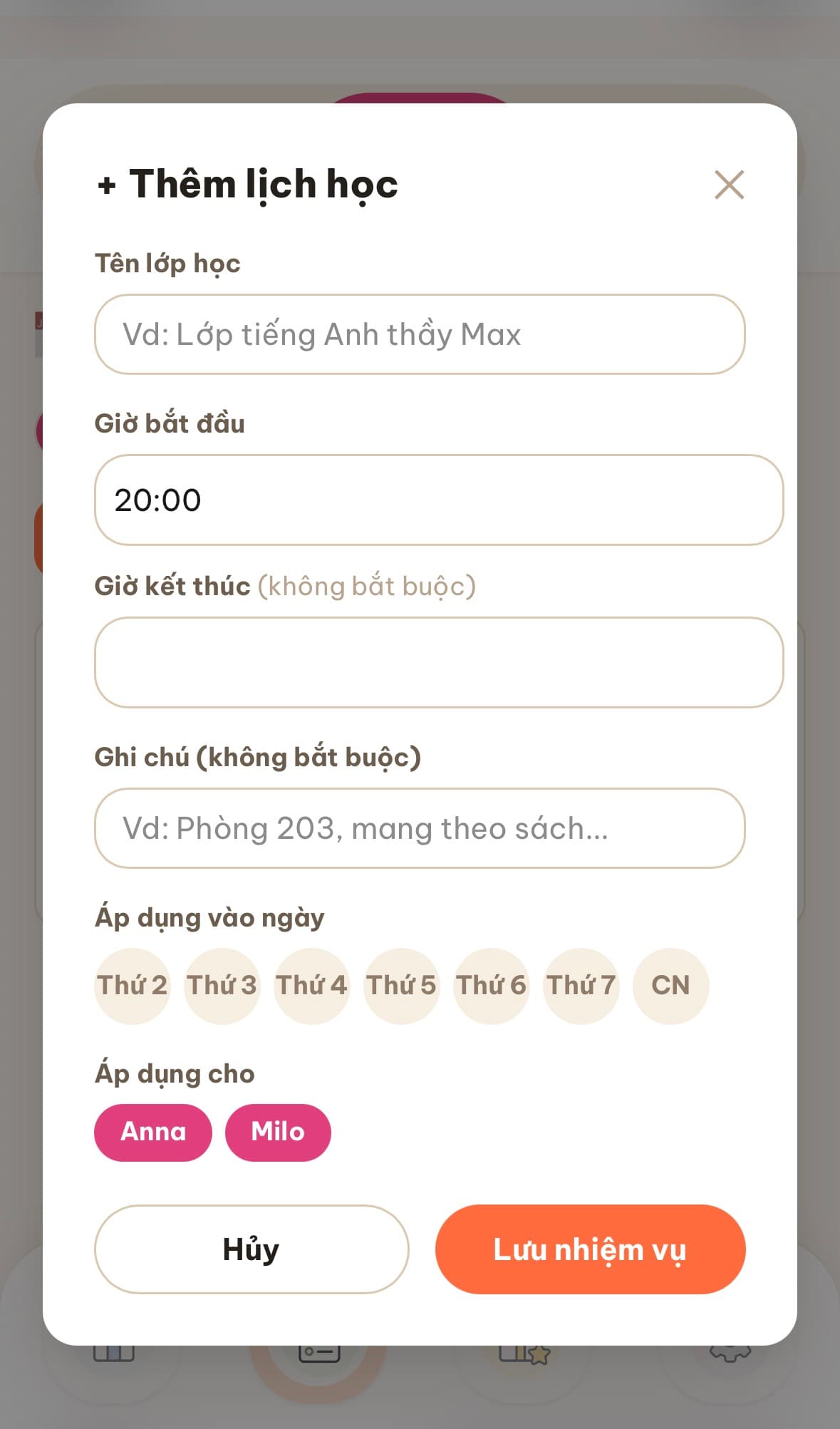
Add classes or activities — they'll show up on your child's dashboard on the right day.
Keep an eye on things
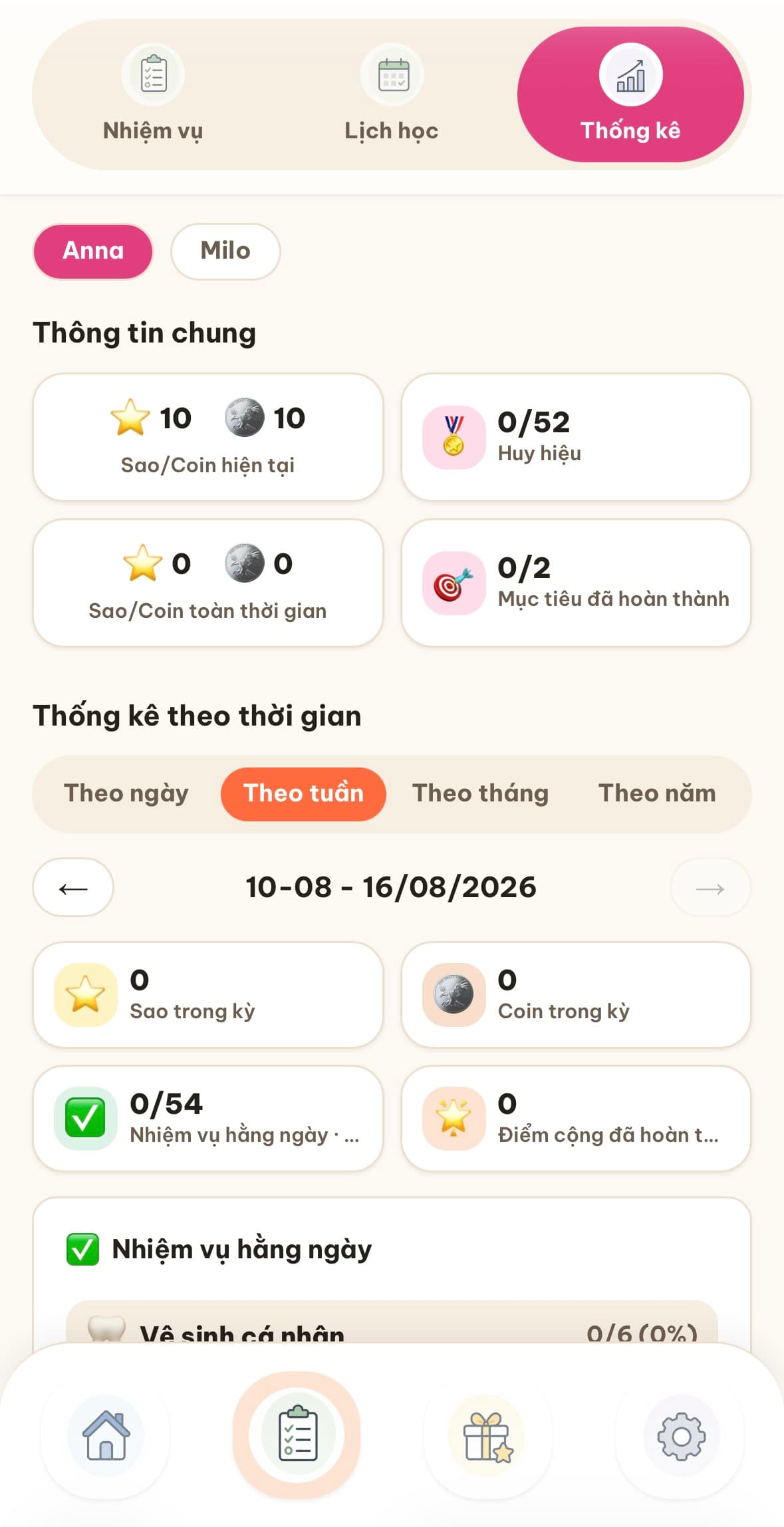
Stats breaks it down by day, week, month, or year for each child.
Stock the reward shelf
Rewards
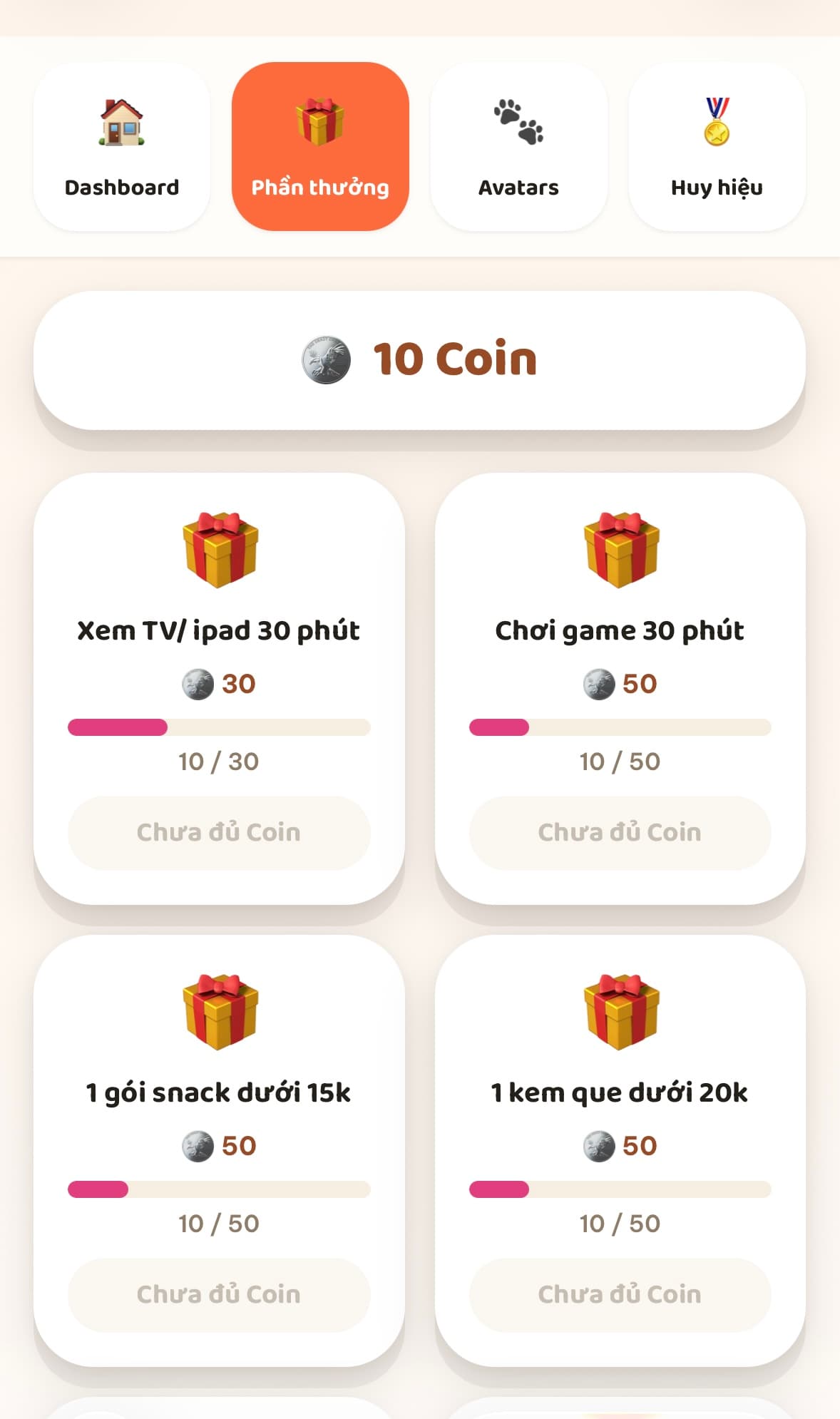
In Rewards, add anything your child can redeem with coins — a toy, screen time, a trip out.
Avatars
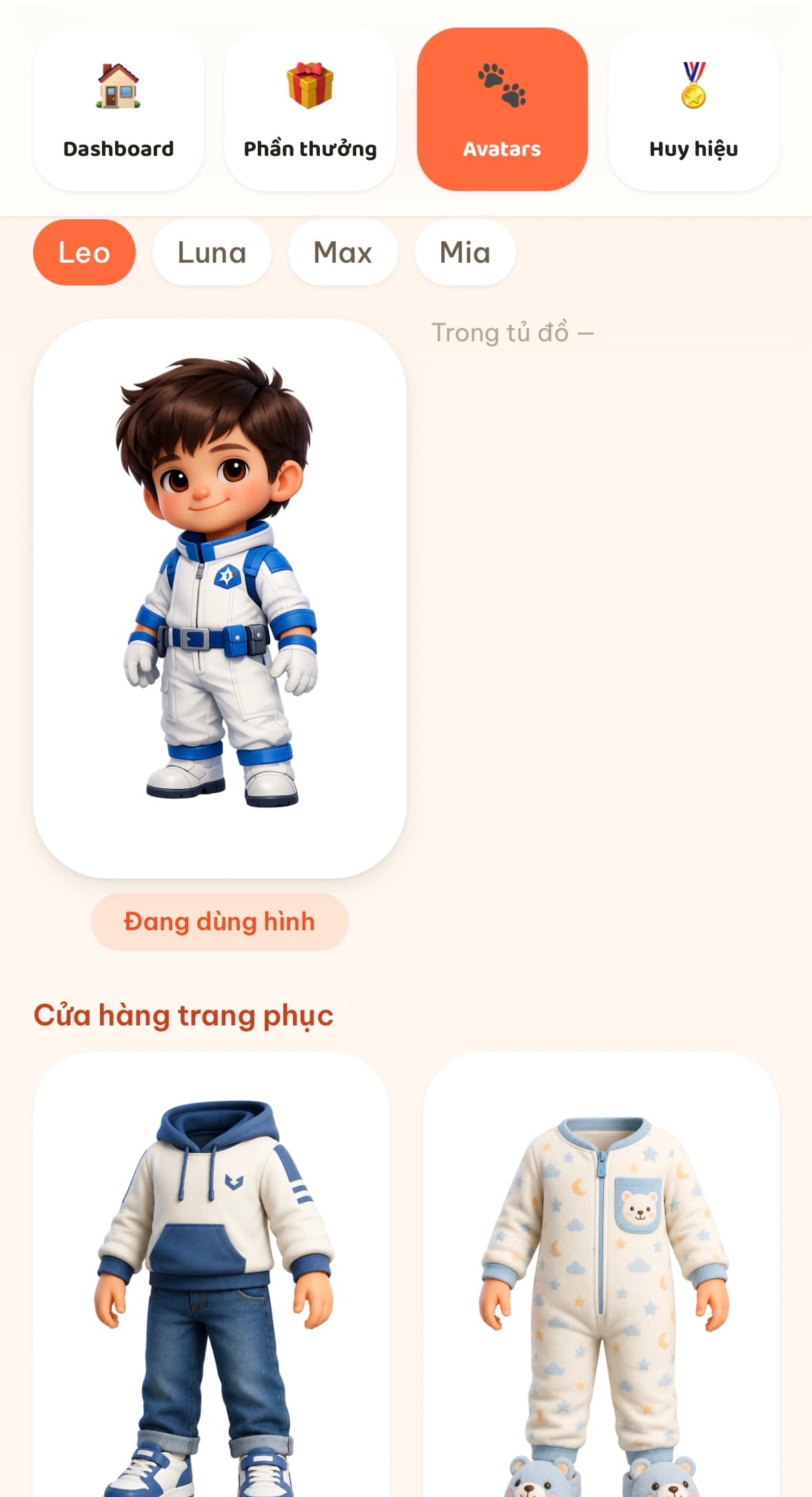
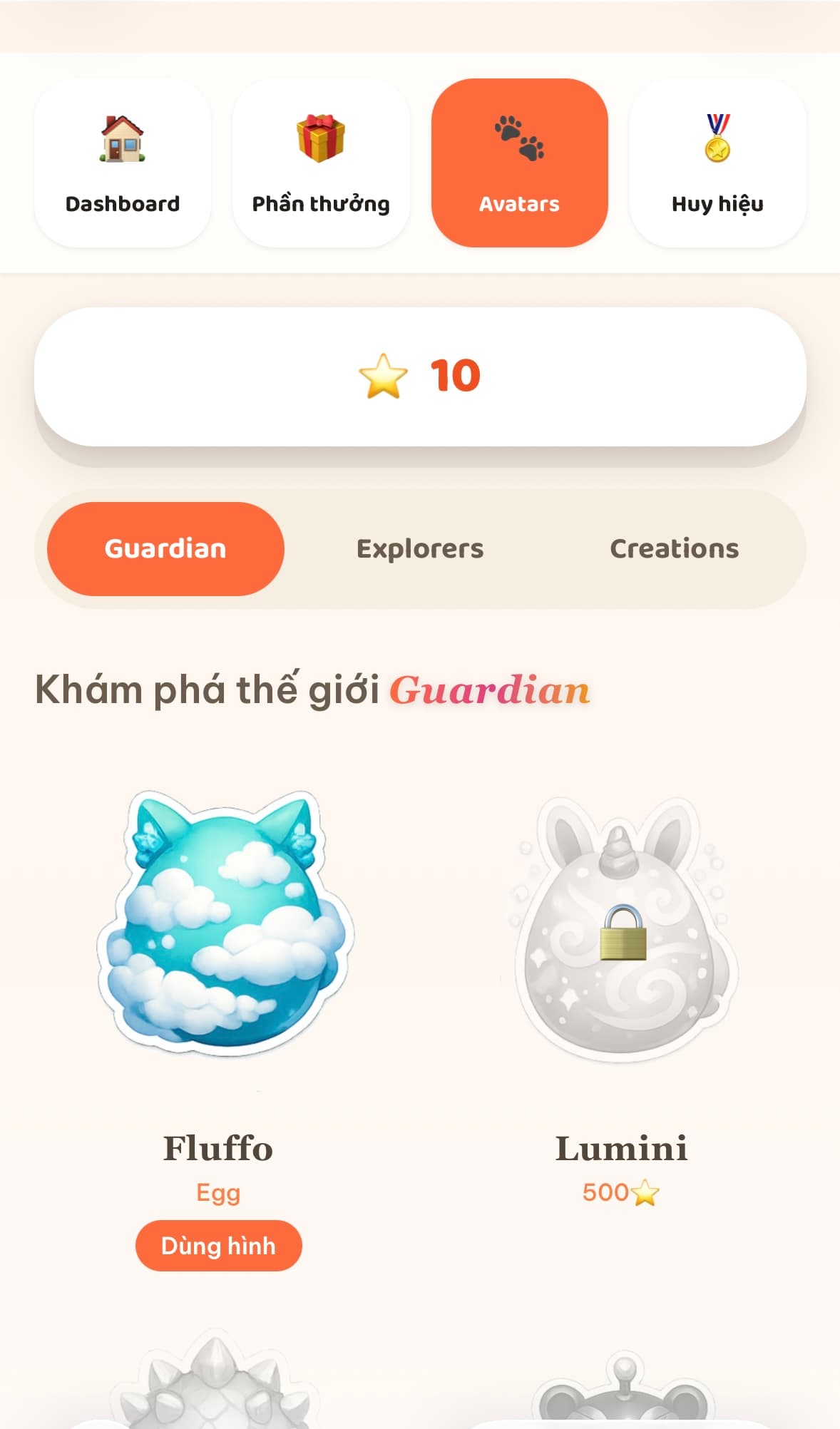
Kids spend stars here to unlock characters and outfits for their profile.
Badges
Create achievement badges — auto-granted at a milestone, or awarded by you by hand.
Your child's turn
Pick a profile
On the profile screen, your child taps their name and enters their password, if you set one.
Complete missions
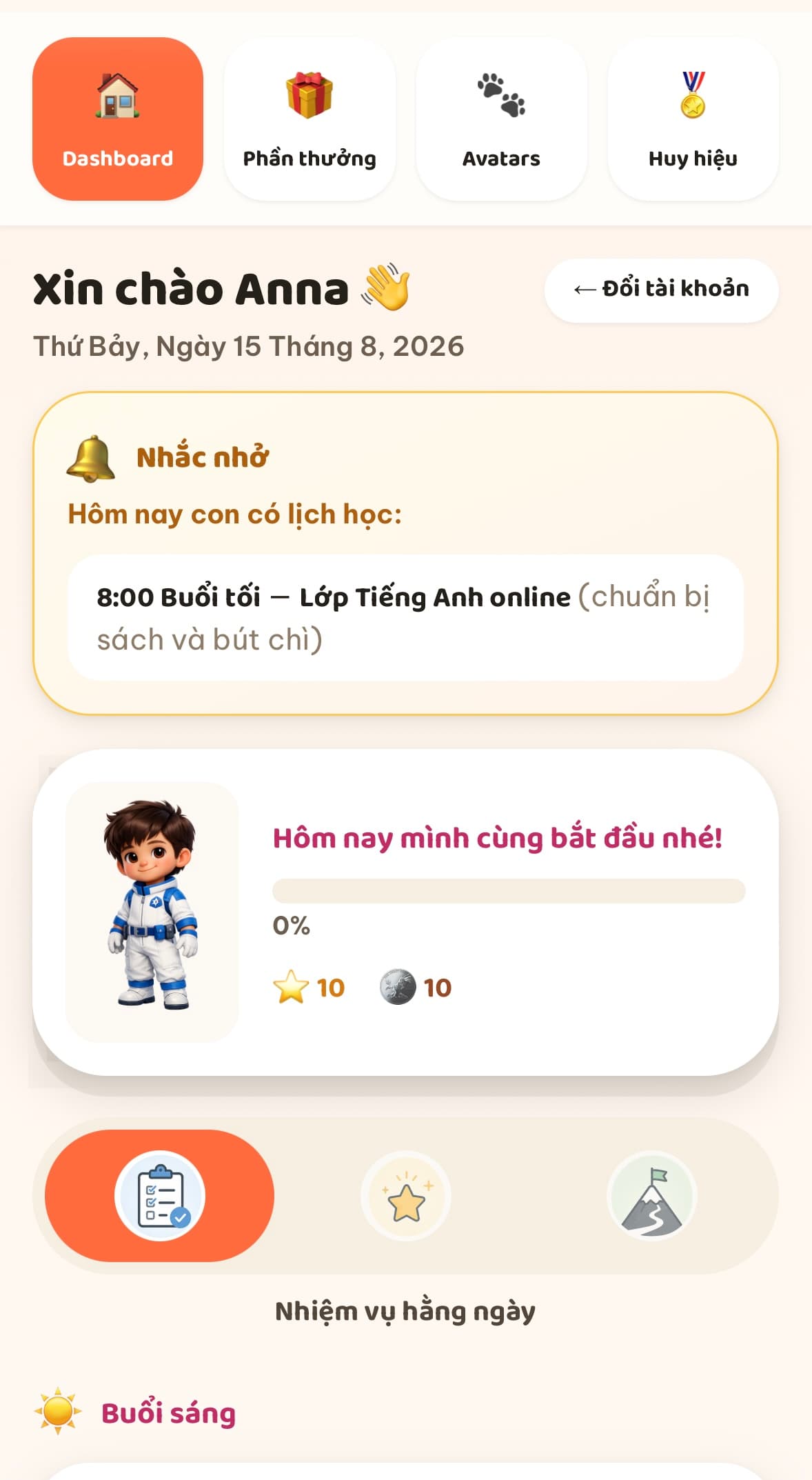
On their dashboard, they switch between Daily tasks / Bonus points / Special goals and tick things off as they go — stars and coins land instantly.
Chase a special goal
Automatic goals show live progress; manual ones wait, locked, until you grant them.
Redeem rewards
With stars and coins saved up, they browse Rewards and Avatars to spend them on what you've stocked in part 3.
See badges earned
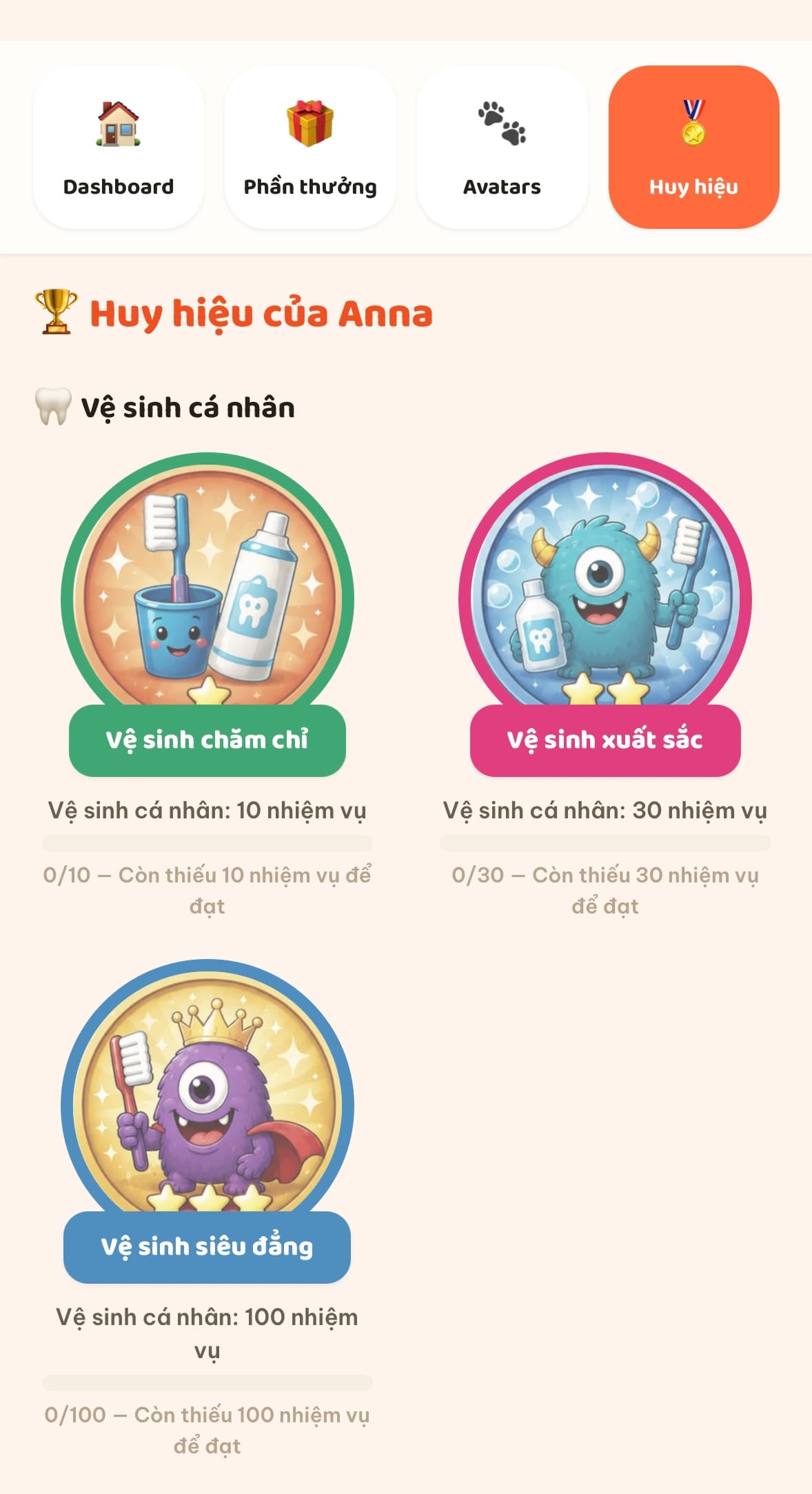
Every badge shows progress toward the next one, so kids always know how close they are.
Back to the parent area
Tapping ← Switch account at the top takes them back to the profile screen — the parent password from part 1 guards the way back in.